You must update your WordPress website software regularly to avoid breaks and hacks.
Some people think that updating a WordPress website’s software is a click of a button! It can be, but that single click can break your entire site if you’re not careful. You must follow the correct update process to make sure WordPress software updates don’t break your website.
This is the simplified process to update your website:
- Backup your website
- Update one piece of software
- Clear website cache
- Test the website to check for conflicts
- Repeat steps 2, 3, and 4 until all your software has been updated.
It’s extremely important to do these steps in the right order every time.
Now let’s find out why!
How does WordPress software work?
A WordPress website is built on the WordPress core – this is free, opensource software and is the first thing you install to create a WordPress website.
Secondly, you must have a WordPress theme installed. These can be free, or they can be paid (premium themes). Great premium themes are usually worth the money as they are versatile and supported by their developers (the people who built them).
Lastly, you will have some plugins installed. Plugins are smaller pieces of software that are installed onto your website and “plug in” to give you more functionality. Example: You might install an advanced ‘forms’ plugin – this will allow you to build comprehensive enquiry forms. Gravity Forms is a great plugin for this.
These three elements make up your WordPress website installation, and all three must be kept up to date.
Some software doesn’t work with other software
When you update your WordPress website, it’s very important to remember that some software (eg: your theme) might not be compatible with other software (eg: a plugin you use). This is common, and the leading cause of broken websites.
We call the errors caused by some software not working with other software ‘conflicts’.
These conflicts can break your site completely so it can’t be accessed or used at all, or they might just cause some elements to stop working. When updating your site, it’s important to know when a conflict has occurred, and which piece of software caused it.
Software developers don’t need to build something that works with every other theme or plugin for WordPress. There are no rules that govern this compatibility and, for the most part, you install the software as is, at your own risk.
A good web designer will know a lot about what works well with what, and which software might cause issues. As a person building your own website for the first time, you probably won’t have this same knowledge.
How do I know which software caused a conflict?
Sometimes it’s difficult to find the cause of the conflict. This is why software updates must be performed carefully, in a specific order, and the website must be tested at each step.
The steps to update a WordPress website:
- Backup your website
- Update one piece of software
- Clear website cache
- Test the website to check for conflicts
- Repeat steps 2, 3, and 4 until all your software has been updated.
If you follow these steps when you update your WordPress website softare, you will be able to tell which core, plugin, or theme update broke your website.
How to update your WordPress website software
Step 1: Backup your website
A host backup is when your website host handles your website backups for you on the server. You often can’t check if these are working correctly, or at all. We don’t trust these, and prefer to setup our own backups for each client, so we KNOW the backups are working.
We use a backup plugin to handle all our clients’ backups automatically, on a weekly basis. UpdraftPlus is our preferred update plugin. Make sure you backup to an external location – i.e. backup to a location that’s not on your server.
We backup to Dropbox, but you can choose any external location, like Google Drive, OneDrive or other, depending on the version of the UpdraftPlus plugin you have.
Just make sure your backups are NOT going to stay on the same server as your website. If you backup to the server and the server crashes, you could lose all your backups. Similarly, if the server is broken or hacked, you could also lose your website backups.
How often should I backup my website?
Automate your backups and choose your backup schedule. We backup weekly at the very least. If you have a very busy ecommerce shop, you might prefer to backup more often.
Remember: If everything crashes and you need to restore a backup, anything that happened on your website between the time of the last backup, and the time you are restoring it, will be lost.
This is why busy shops like to backup more frequently, so they don’t lose order information. It’s also why we always backup before doing any updates. This way, if an update breaks the website, we can restore to a few minutes before the update.
Step 2: Update ONE piece of software at a time
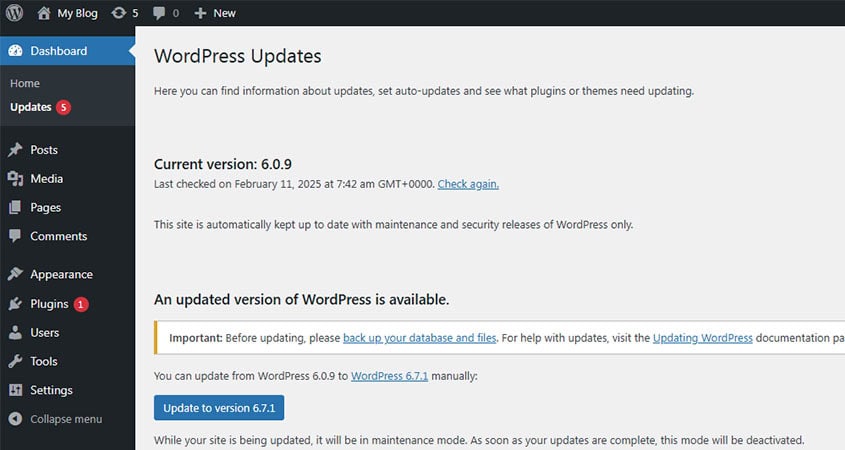
Login to the WordPress admin page of your website, hover over ‘Dashboard’ in the dark grey menu on the left and click ‘Updates’.
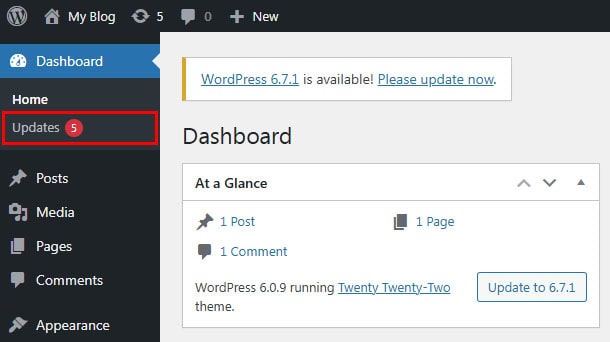
Here, you will see all the software updates available for your website.
Our experts recommend updating your WordPress website software in this order:
- First, update the WordPress core.
- Then, update your plugins (one at a time).
- Finally, update your theme last.
We suggest you always start by updating the WordPress core. If there is an update available, you will see a blue ‘Update Now’ button. When you press ‘Update Now,’ WordPress will automatically put your site in maintenance mode, then fetch the latest version of the software and install it for you.
PRO TIP: If the update is from 6.7.1 to 6.7.2, it’s likely to be a small update with fewer chances to break your website. If it’s an update from WordPress 6.xxx to WordPress 7.0, it’s likely to be a large update and has much more potential to break your website.
Big WordPress core updates (like 6.xxx to 7.xxx) often break websites because the software developers of themes and plugins have not had a chance to update their own software, so it works with the new version of WordPress. In these cases, we advise waiting a few weeks before updating the core, to allow other developers to catch up.
Step 3: Clear your website and browser cache
‘Caching’ means to store copies of website files in a cache on your site so that cached content can be accessed quickly. It’s a system used to speed up your website for your users. These website files can also be cached on your local computer.
Therefore, you might need to clear both caches (on your website and on your computer) before you see the updated site to check if the software update caused any errors or conflicts.
The method to clear your WEBSITE cache depends on which caching plugin you are using. Check the top grey bar in the admin section to see if there’s a ‘Clear Cache’ option there. If not, check the use instructions for your cache plugin and follow their instructions to clear your cache.
If you’d like to, you can also clear your browser cache to make sure you are seeing the latest version of your website files. The instructions are different for each browser:
- Instructions to Clear Chrome Cache
- Instructions to Clear Firefox Cache
- Instructions to Clear Edge Cache: Go to Settings > Privacy > Clear browsing data and select Ctrl+Shift+Del. You can also type “edge://settings/clearbrowserdata” in your address bar to access this function.
- Instructions to Clear Safari Cache
Test your website to make sure nothing has broken or changed after updating the software.
Step 4: Test the website to check for conflicts
This step is critical.
Make sure you click through your website and test the functionality after EACH UPDATE to make sure nothing has moved or broken.
This step is very important because it allows you to isolate the cause of the conflict. If you know which software broke the website, you can work towards fixing it.
What if a software update breaks my website?
If there is a problem, you can either try to fix it or you can restore your backup, so the update is reversed.
If you want to fix the issue yourself, you can contact the support desk of the software that broke your website. Paid software usually has support, but free software support can be very unreliable. If you don’t want to, or can’t, contact support, you will need a working knowledge of WordPress and code to fix the issue.
If you’re not able to fix the conflict, you’ll need to either contact a professional web designer or replace the offending software with other software that does the same job.
A clone or staging website can also be used for testing updates
If you have a very busy website, or you don’t want to risk breaking your site when performing updates, you could use a clone or staging.
A clone website or staging website is a duplicate of your website, but it isn’t visible to your normal site users. It’s a testing space for you to try out new software updates or features, without breaking anything on your original website.
Once you have determined the updates don’t break anything and are safe to make, you can update the software on your main website.
This can be a very useful process but is cumbersome for some users.
How often should I update my WordPress website software?
You should be checking if there are any updates available about once a week.
New versions of software are released constantly, and only when the developer of that software is ready. The developers of the various software don’t keep up with each other. One week you might have one thing to update and the next week there might be ten updates waiting for you.
Don’t skip this regular website maintenance
If you don’t update your website software regularly, it will quickly become outdated. Outdated software leaves your website vulnerable to breaking or being hacked. Both scenarios can be catastrophic if you don’t have the correct backup systems in place.
We can handle your website backups, software updates, and security for you, if you prefer. Please contact us if you have questions.